Expresso · Manual
Every After Effects expression, organized and one click away
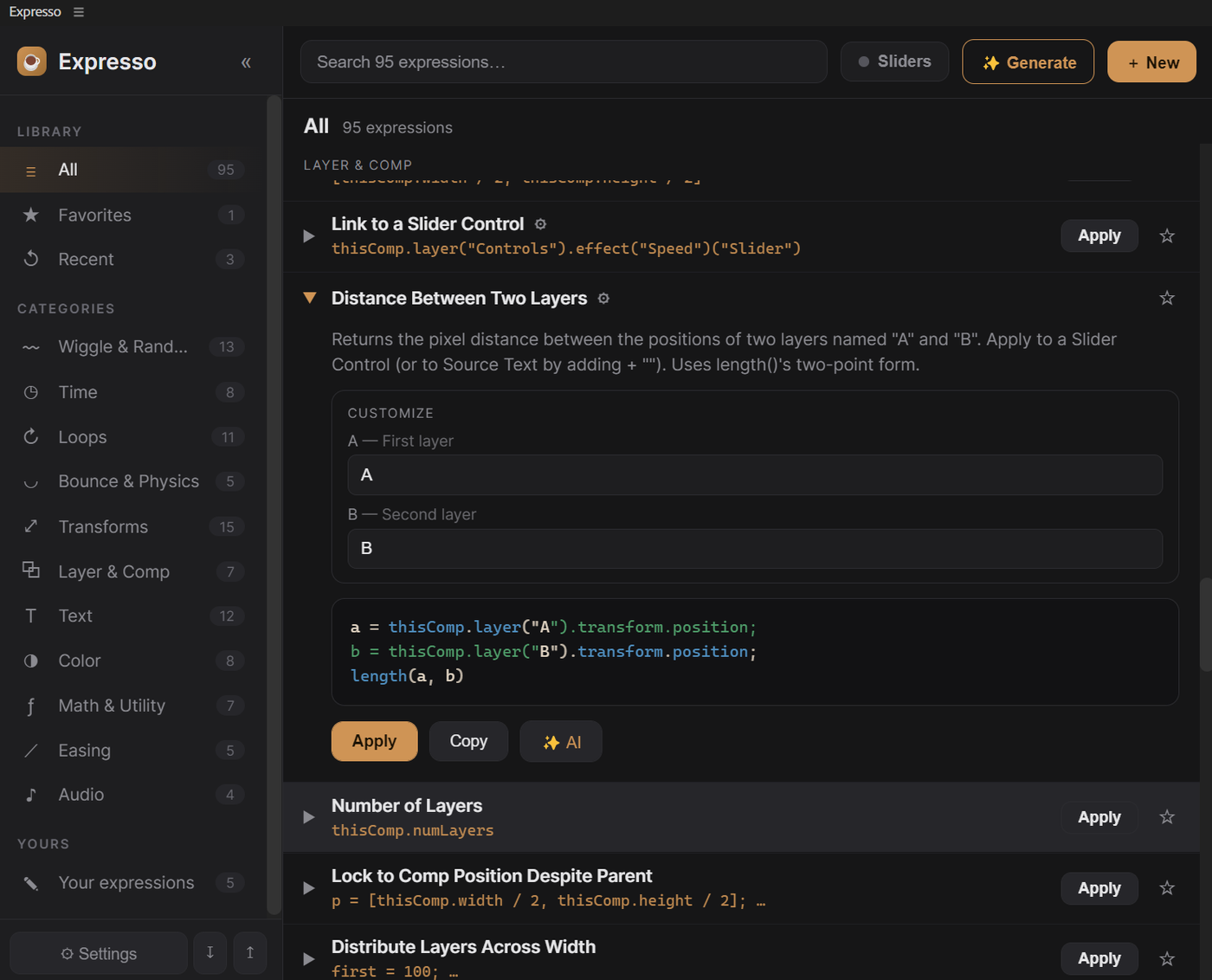
Expresso is a dockable panel that stores, organizes, and applies After Effects expressions — a library of 90 sorted by category, each with tweakable parameters. Apply one to a selected property, copy the code, save your own, or generate a new expression with AI.
01Install
A one-time setup. Takes about a minute.
- Get the file —
com.dexterbrewer.expresso.zxp. - Install it with a ZXP installer. If you don’t have one, the free aescripts ZXP Installer works — open it and drag the
.zxpin. It’s self-signed, so a “self-signed certificate” note is normal. - Restart After Effects.
- Open the panel: Window ▸ Extensions ▸ Expresso. Dock it wherever you like.
~\Expresso), so they’re there in every project.02The basics
Browse, customize, and apply from a library of 90 — or grow your own:
1 · Find an expression
Browse by category in the sidebar — Wiggle & Random, Time, Loops, Bounce & Physics, Transforms, Layer & Comp, Text, Color, Math & Utility, Easing, Audio — or type in the search box. Favorites and Recent keep the ones you reach for up top.
2 · Customize it
Expand an expression to read what it does and fill in its parameters — layer names, values, and the like. The code updates live, so you’re not editing raw expression text by hand.
Flip on Sliders to tweak numeric values with a drag instead of typing.
3 · Apply or copy
Select a property in After Effects — position, opacity, scale, anything with a stopwatch — and click Apply to drop the expression right on it. Or hit Copy to grab the code for pasting anywhere.
4 · Generate with AI — or explain, improve, and riff
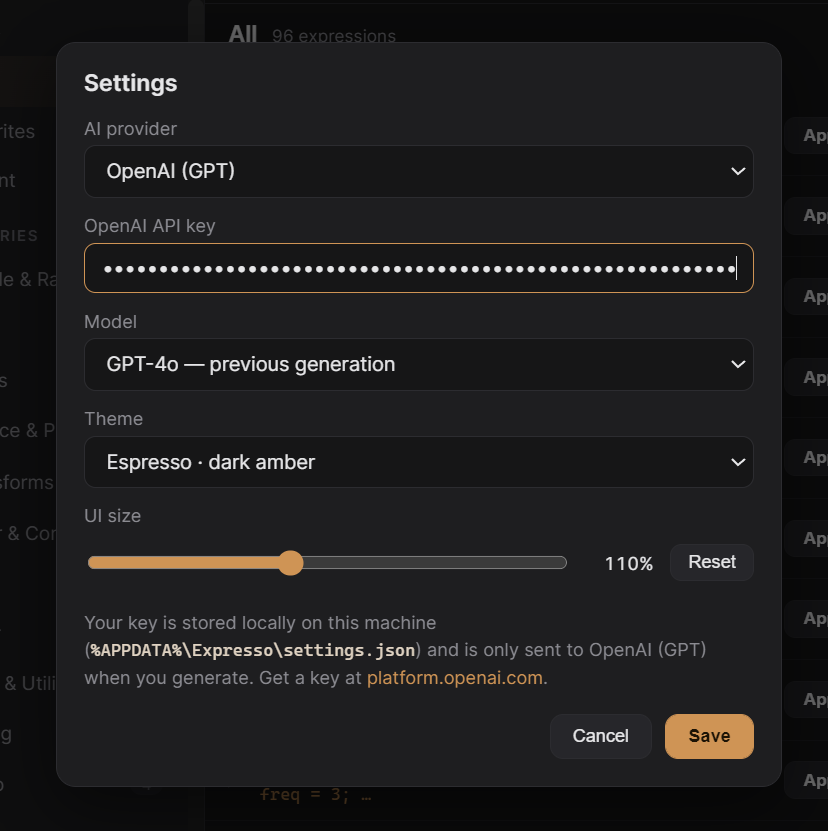
Can’t find the one you need? Hit ✨ Generate and describe what you want — Expresso writes the expression for you. The ✨ AI button on any card works the other direction: Explain what an expression does in plain English, Improve it, or spin off Variations. All of it runs with the AI provider you choose: Claude (Anthropic), GPT (OpenAI), or Gemini (Google). Add that provider’s API key in Settings, pick a model from the dropdown (or paste a custom model ID), and you’re set.
Your key is stored locally on your machine and is only sent to your chosen provider when you generate. Each provider’s key is saved separately.
5 · Add your own
Found an expression you keep rewriting? Hit + New to save it with a name and category — it lands under Your expressions, right alongside the built-ins, and you can star anything to favorite it.
03Handy extras
A few more touches:
Customizable parameters
Most expressions expose their knobs up front — set layer names and values without touching the code.
Favorites & Recent
Star the expressions you use most and jump back to what you applied last.
AI, your key
Generation runs on your own key with Claude, GPT, or Gemini — pick the provider and model in Settings.
Yours to keep
Build a personal toolkit over time; your saved expressions travel with you in ~\Expresso.
Keeps itself current
A banner tells you when a new version is out, with What’s new and Get update — plus a built-in changelog (the v… · What’s new link at the bottom of the sidebar). Bugs and feature ideas go straight from Settings to the developer, tagged with your version.
Expresso · an expression manager for After Effects. Stop hunting through old projects for that one snippet — keep them all in one panel, organized, customizable, and a click away.